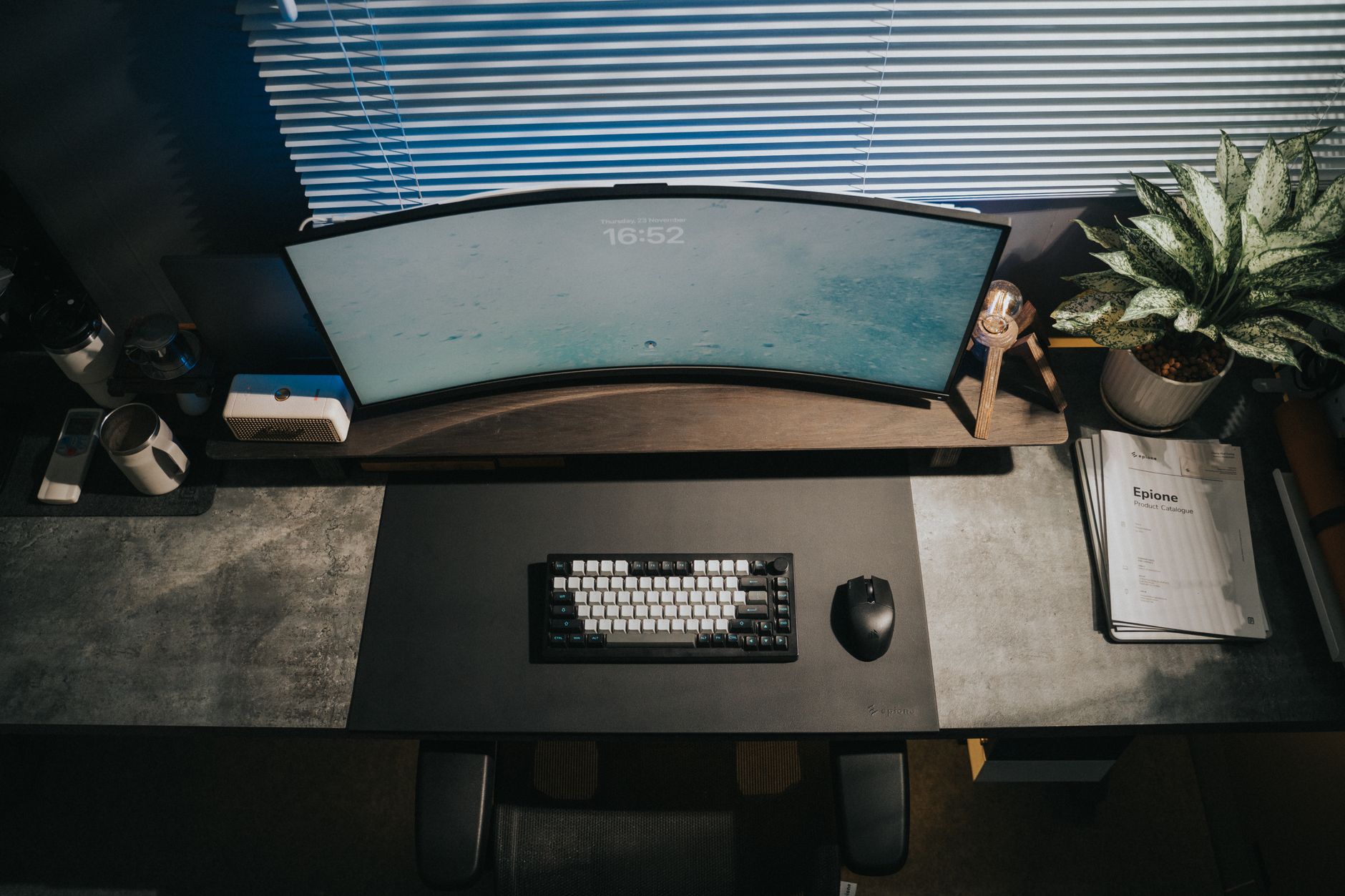
Most people shopping for a curved monitor for work assume the curve is mostly aesthetic, a gaming thing that looks cool on a desk. That assumption costs them either money or a bad purchase.
The real benefit is optical. On a flat 34-inch screen, the edges sit several centimetres further from your eyes than the centre does. Your eyes constantly refocus as they track across the panel, and after a few hours that adds up to genuine fatigue. A curved panel keeps the whole surface at roughly the same focal distance, which is the same reason reading a book is easier than reading a billboard. Simple mechanical advantage, not a marketing story.
Whether that advantage is worth $300 or $800 depends on a few specific specs, so let me walk through what actually matters.
Curvature Ratings Explained
The number on the box, 1800R, 1500R, 1000R, is the radius in millimetres of the circle the curve would form if completed. Smaller number means tighter curve. A 1800R panel is gentle enough that you barely notice the bend unless you’re looking from the side, and most office-use curved monitors land between 1800R and 1500R, which works well for a full workday.
1000R is where things get complicated. It matches the curvature of the human eye more closely, and some manufacturers use that fact aggressively in their marketing. In practice, at normal desk distances of around 60 to 80 cm, a 1000R curve on a 34-inch screen can look slightly distorted on straight lines and right-angle shapes, like spreadsheet grids or document edges. Fine for gaming; less fine when you’re proofreading a contract. I’d steer most office users toward 1800R.
Size and Resolution
The 34-inch ultrawide has become a kind of consensus sweet spot, and I think the consensus is right. It’s wide enough to tile two full documents side by side without cramping, yet fits on most standard desks without requiring you to physically turn your head to see the edges. Go up to 38 or 40 inches and you’ll likely need to sit further back than a typical desk allows.
Resolution matters more than people expect at this size. A 34-inch panel at 3440×1440 (sometimes called WQHD ultrawide) gives you sharp text and comfortable pixel density. The older 2560×1080 panels at the same size look noticeably soft on fine text, which defeats the point if you’re doing document work all day. Spend the extra $60 and get 3440×1440. The aspect ratio shift from 16:9 to 21:9 is worth naming too, because you get roughly the horizontal space of 1.7 standard monitors in a single panel with no bezel cutting through the middle.
Refresh rate for office use
You don’t need 144Hz for spreadsheets. The jump from 60Hz to 75Hz does make scrolling and window movement feel noticeably smoother, and most curved work monitors above $300 include it. Anything beyond 75Hz is genuinely wasted money if your use case is email, documents and video calls.
Top Curved Monitors Worth Buying
Two models come up in almost every serious recommendation thread, and both deserve their reputation.
The LG 34WN80C-B sits around $350 to $450 depending on where you buy it. It’s a 34-inch 1800R IPS panel at 3440×1440 with USB-C power delivery up to 60W, meaning one cable from your laptop handles display and charging together. Colour accuracy is solid for the price. The stand isn’t the sturdiest I’ve seen, but it adjusts well enough for most setups.
The Dell UltraSharp U3423WE runs closer to $700 to $800 and earns it. USB-C power delivery bumps to 90W, there’s a proper KVM switch built in so you can run two computers through one monitor, and panel uniformity across the edges is genuinely better. If you’re running a dual-machine setup or need accurate colour for design work, the price gap is justified. For straight document and browser work, the LG gets you most of the way there at half the cost.
There are cheaper options below $250, mostly 21:9 panels at 2560×1080. I’d skip them for work. The resolution drop is too noticeable on text, and the curve tends to be 1800R on a smaller 29-inch frame where the ergonomic benefit is marginal anyway.
Making the Switch Without Regrets
The biggest adjustment when you first use a curved monitor for work is app layout. Windows and macOS both handle ultrawide reasonably well, but you’ll want a window-snapping tool (FancyZones on Windows is free and genuinely good) to use the extra width efficiently. Without it, most apps just stretch to fill the panel and waste the space.
Give yourself a week before judging it. The curve looks odd for the first day or two, then you stop seeing it entirely. What stays is the reduced neck movement and the fact that your eyes aren’t constantly hunting across a flat plane. Most people who go back to a flat screen after a month on an ultrawide find it feels cramped almost immediately, which I’ll admit surprised me the first time it happened.
FAQs
Is a curved monitor good for office work?
Yes, particularly for long sessions. The consistent focal distance reduces eye-refocusing fatigue, and the ultrawide format replaces the need for a second monitor in most workflows.
What curved monitor size is best for a desk?
34 inches at 3440×1440 fits most standard desks comfortably and gives enough horizontal space to work across two applications without crowding.
Does a curved monitor cause eye strain?
A well-chosen curved monitor reduces eye strain rather than causing it. Avoid 1000R curvature at close desk distances, where straight lines can appear slightly warped.